

Hello admins,
In your back office, all assets (a dataset, Studio page, HTML page, or external asset) are now grouped under a single category: Assets.
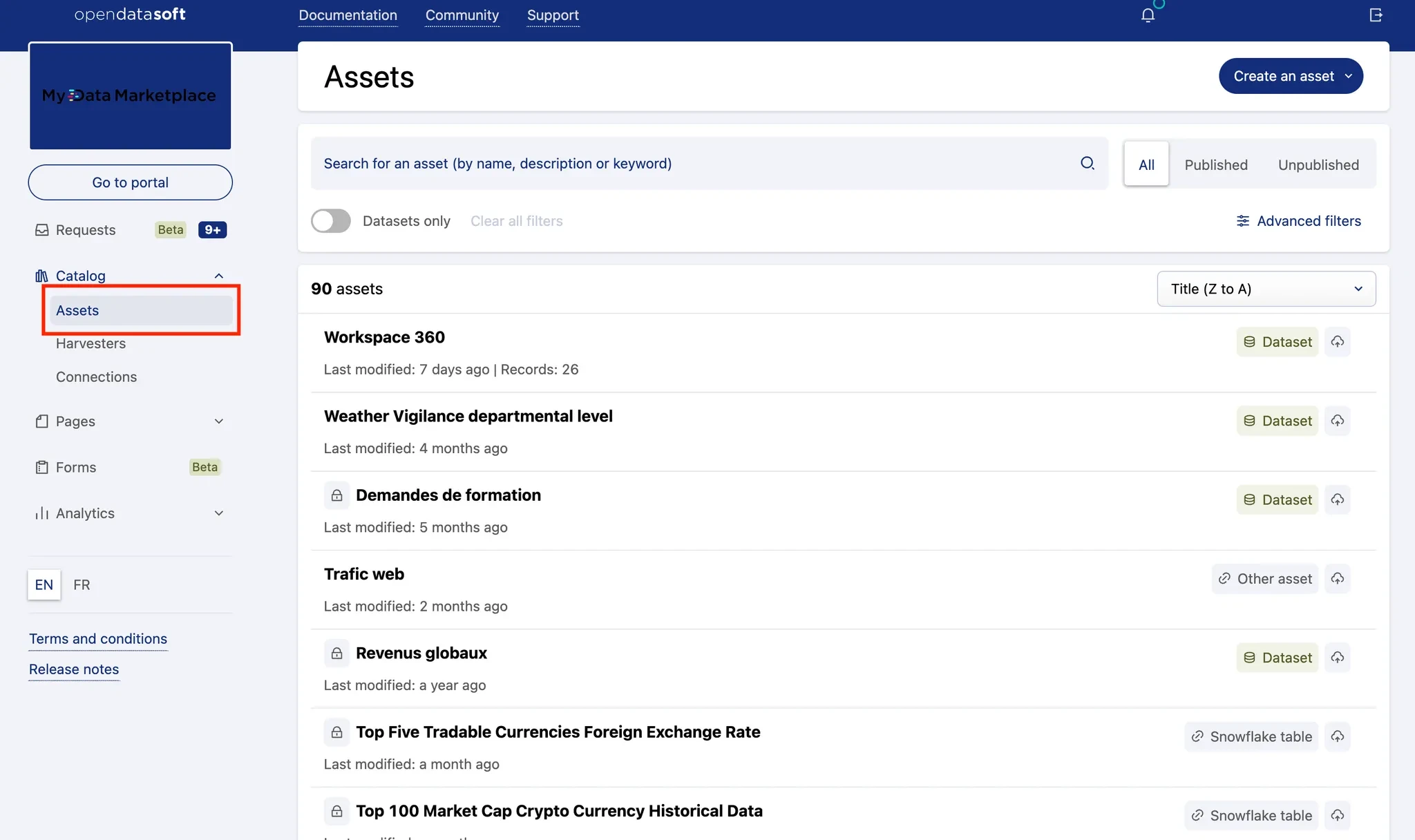
The new Asset management suggests a two-layer distinction. On the one hand, all assets share common properties, grouped in the Asset management view. But assets also have traits specific to each asset type, which you define when you build an asset or click on Edit content.
1. Managing the asset
When you click on Edit the asset **button in the Asset management, you will see the following options:

These tabs are common to all assets:
- Metadata (previously displayed under the “Information” tab). Note that for datasets, the Metadata tab has a Dataset sub-tab for interoperability metadata.
- Access
- Consumption funnel
- Previews (data or chart highlights that will be shown on the Asset page)
- Attachments
- Analytics
- Lineage
2. Building the asset
Besides common characteristics, each asset has its specific traits. For example:
- You may want to use processors to prepare a dataset.
- Or change layout of your Studio page.
- Or edit your code editor page.
To create or edit asset content, go to the Asset builder by clicking Edit content.
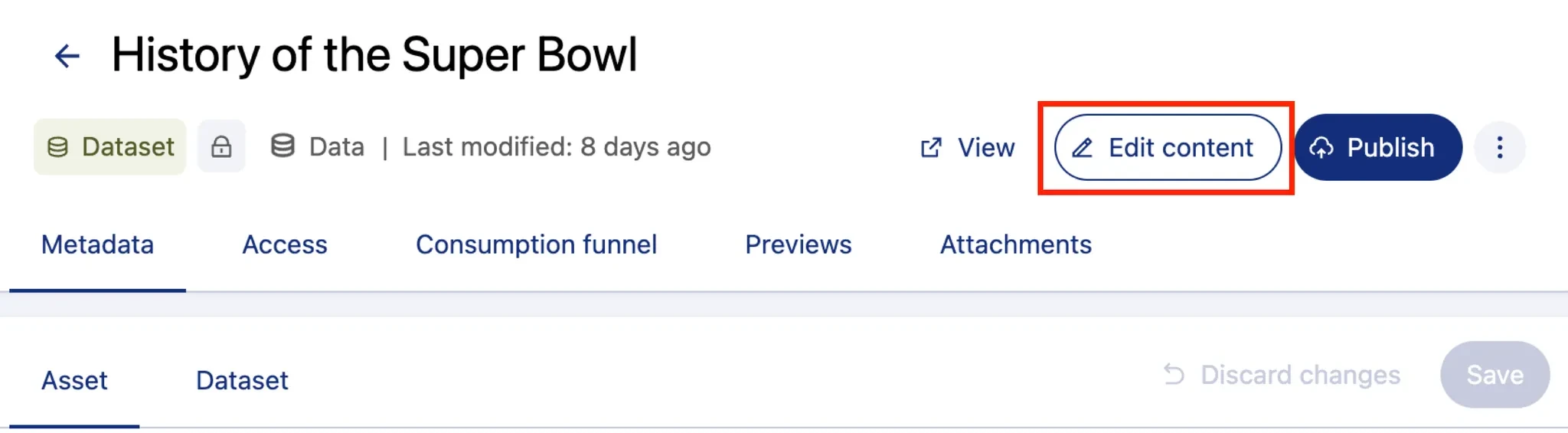
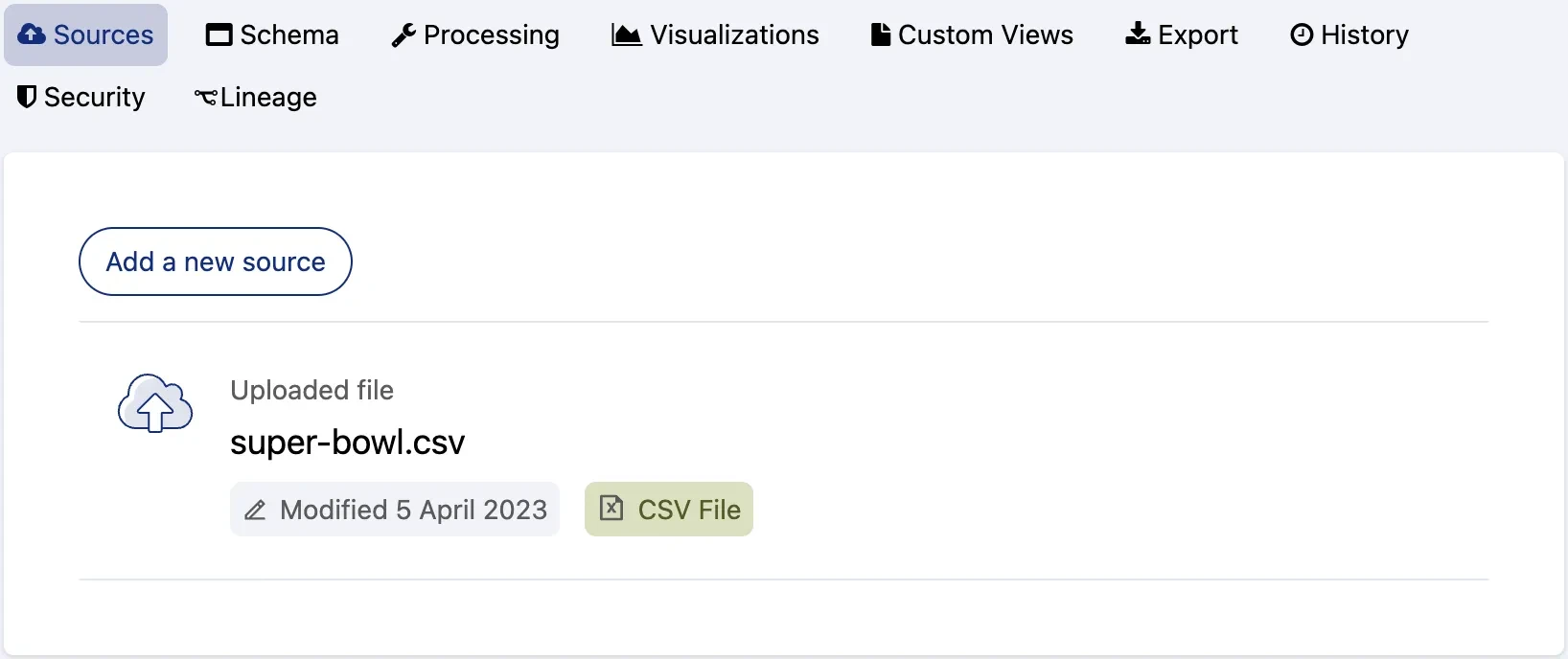
Currently the only specific asset builder available is for Studio assets, but more builders are on the way! So when you click on Edit content for a Studio asset, the new Studio builder will open. For all other asset types (for now), the current editing interface will open.
Want to see how this looks for the end user? → Check this post.