

Hi community,
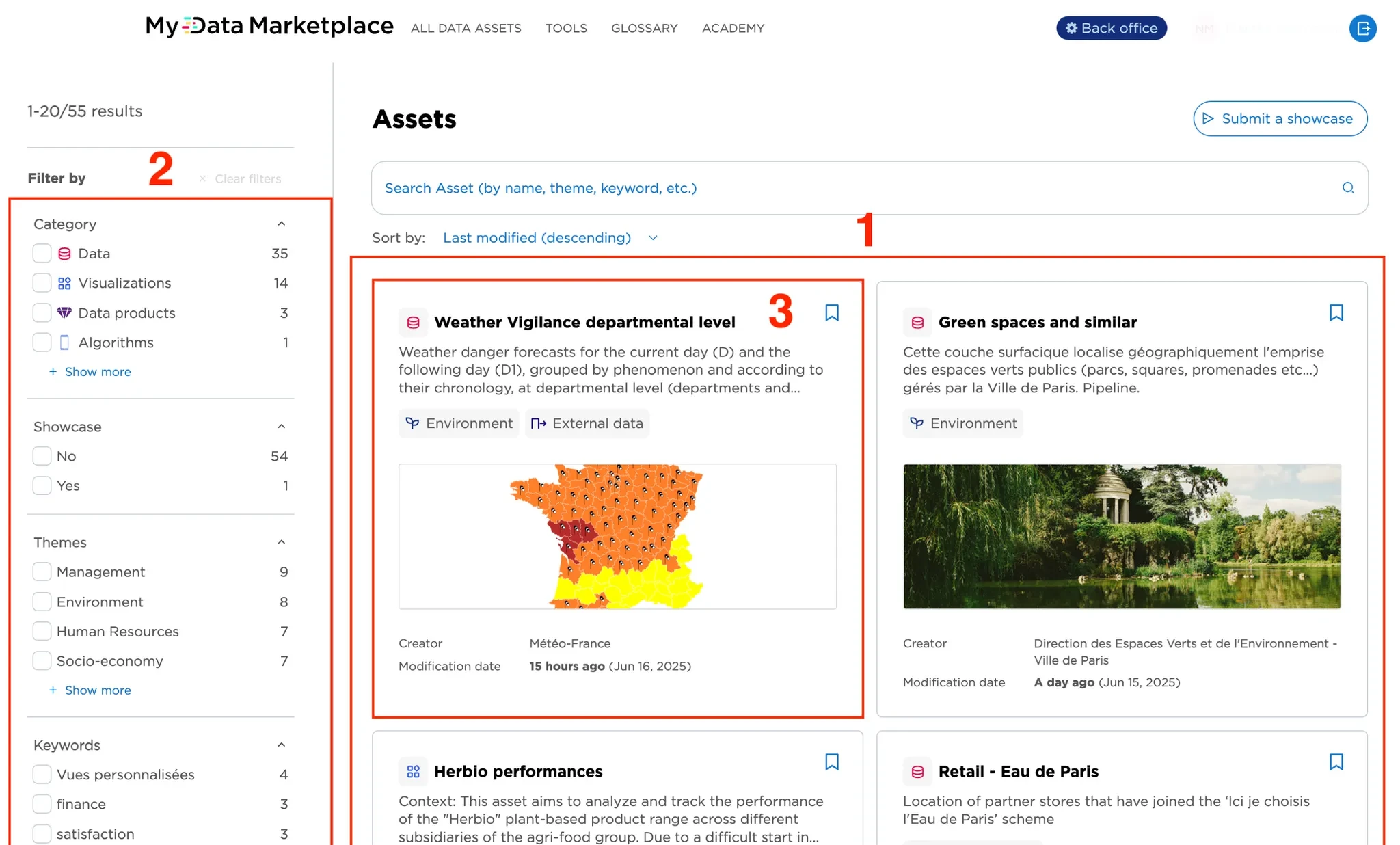
The catalog is your vitrine – it's worth adding a bit of gloss. It helps users quickly understand and explore your assets.
There are three key ways to personalize your catalog page:
- Sorting the cards
- Customizing filters
- Choosing the metadata shown on each card
You’ll find these customization options in Catalog > Settings > Catalog page in your back office.
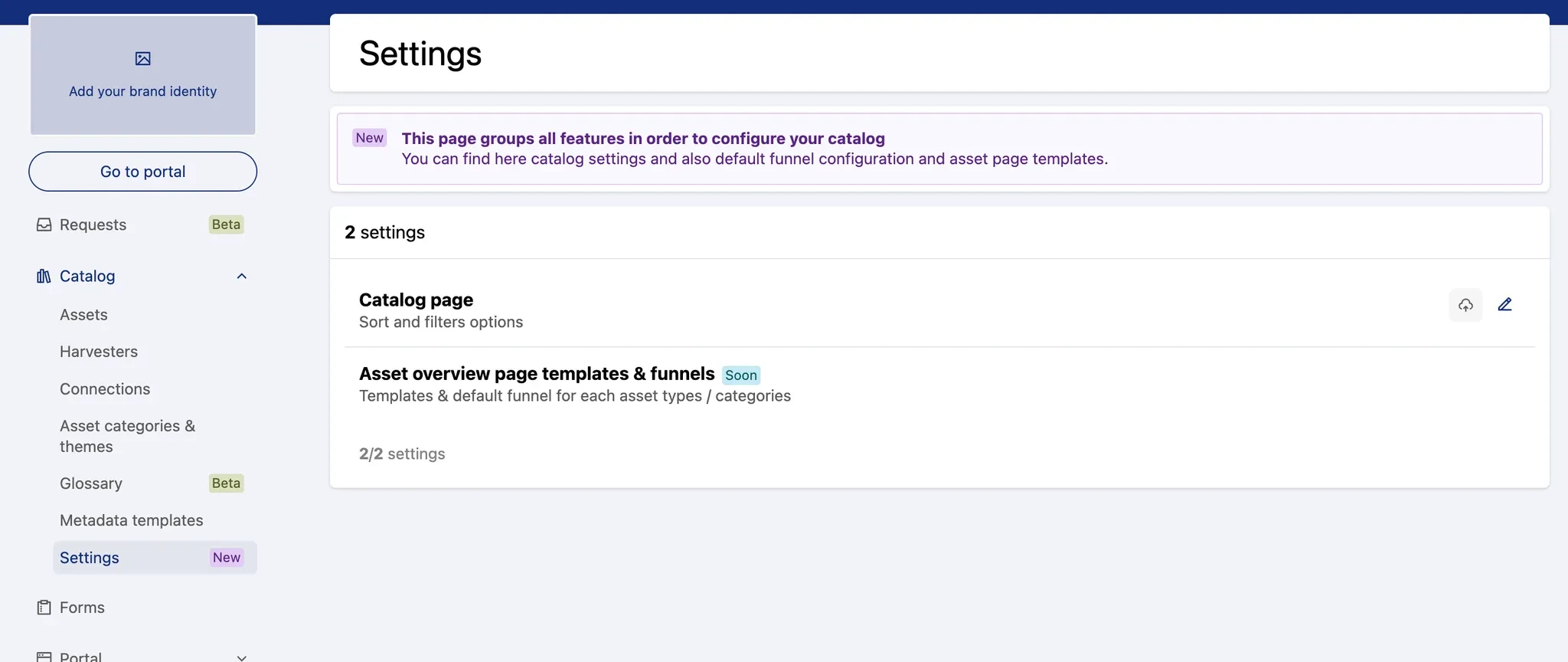
Sort options
You can define the default order of your cards: show the newest first, go alphabetical… whatever works best for your users. It’s the initial display before any search is made. This setting won’t apply when users perform a semantic search – in that case, results are ranked by relevance.
Filters
Filters appear on the left of the page and can be used alongside semantic search. You can now select which filters to show (simply delete those you don’t want), reorder them, and choose if each one is single- or multi-select.
Catalog cards
Catalog cards should give a quick, clear snapshot of each asset. You can now customize what they show and how they look.
Here’s what’s possible:
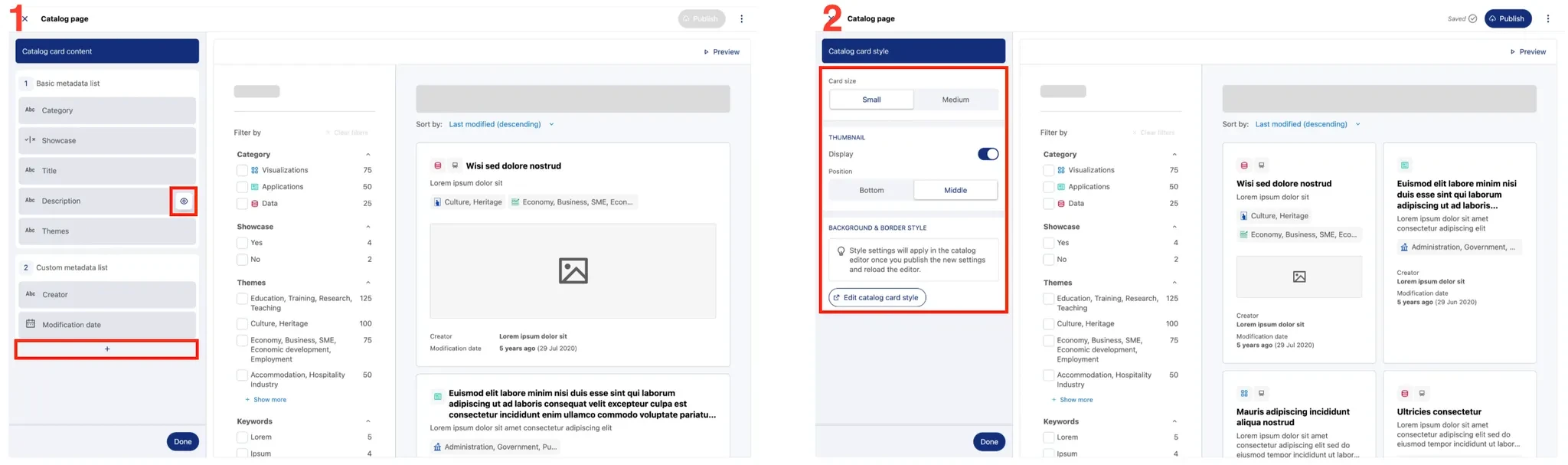
- In Catalog cards > Content, select the metadata you want to highlight – choose up to 8 custom fields from any template (description, keywords, asset type, etc.)
- Show or hide basic metadata using the eye icon.
- Select and sort custom metadata (simply click on the plus button to add more elements from the custom metadata list).
- In Catalog cards > Style, choose the card size and toggle the thumbnail display.
To go further, you can also adjust the card colors and borders – by going to Portal > Style, then scrolling to Catalog cards. All the details are in this post.
A live preview on the right lets you see changes as you go. Once you're happy with the setup, hit publish to update your page.
💎 Coming soon: templates for asset overview pages and funnels. Stay tuned!