
Open

Secure datasets marker

Related product area:Portal interface
  • March 6, 2025
  • 8 replies
  • 88 views

Forum|alt.badge.img+3

It would be great for datasets which are not set to public to be marked as “private” on the Explore page view.

Currently as an administrator, I have to click “Edit” and then to go to the security tab to see if this is set to be on:
Access restricted to allowed users and groups

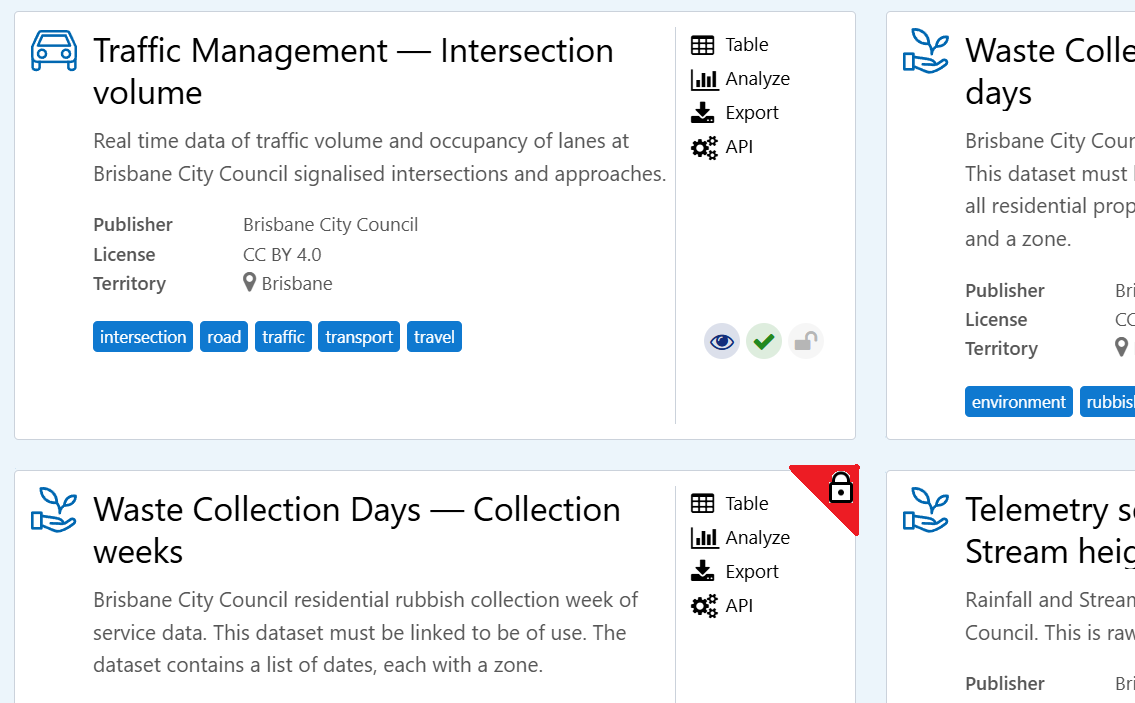
It would be awesome if on the Explore page it had some sort of corner marker or indication that the dataset is in someway restricted.

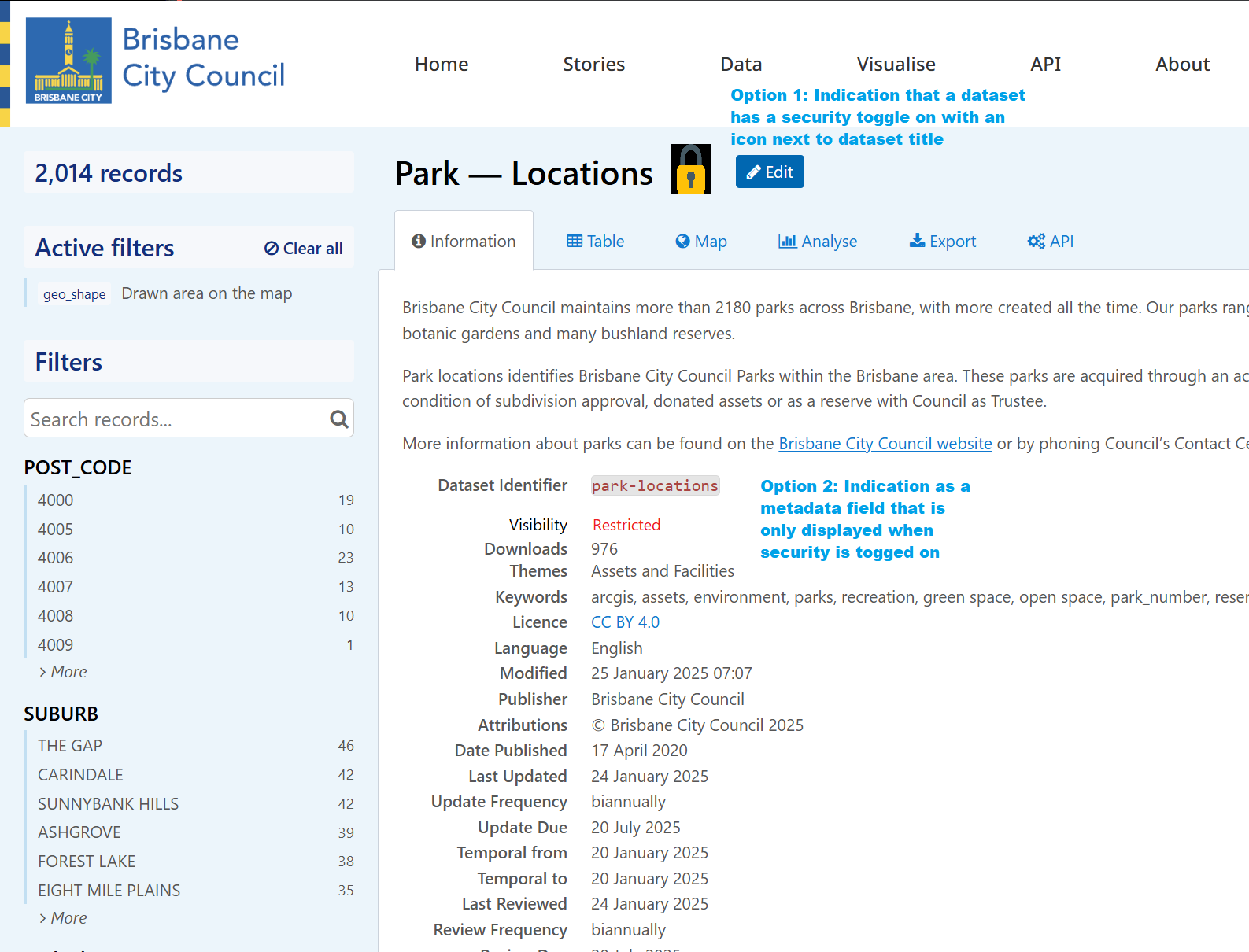
A couple of example options to mark a dataset
 

8 replies

Hi Yvonne,  we have had a similar idea to this recently, and I’ve been looking at lots of other portals to see if someone has done something similar. 

I have found Seine Ouest’s portal: https://seineouest.opendatasoft.com/explore/ and Digital Wallonia’s:  https://digitalwallonia.opendatasoft.com/explore/

Where they have used a custom Catalog card to show an image on their cards if certain conditions are met. I think it should be possible to do this with the “visibility” field for each dataset.


This isn’t something we’ve actually tried yet, so I can’t confirm if it works or not. If you do this, please let us know how it goes. 


Forum|alt.badge.img+3
  • Author
  • Guardian
  • March 24, 2025

thanks ​@matthew.parry - this looks like it would be a good solution.  Do you have any suggestions on how we could include a marker at the Title level (maybe between the dataset title and the “edit” button) or on the Information tab?


I don’t know if it is possible to edit the dataset pages themselves - I think the only thing you could do is to fill in the metadata field for only those datasets where you want it to show up. You may also be able to do something with the HTML mode for filling in the description box.


Forum|alt.badge.img+3
  • Author
  • Guardian
  • July 7, 2025

​@matthew.parry 

Worked it out.  At least for the catalog card.  I just added 
    <i class="fa fa-lock ods-status-info" style="color: red; font-size: 28px;"  aria-hidden="true" ng-show="dataset.metas.visibility == 'restricted'"></i>
 

in the stylesheet and it looks like it works :)  

Just trying to work out how to (if we can) do it on the Dataset page too now.  😅


Forum|alt.badge.img+3
  • Author
  • Guardian
  • August 5, 2025

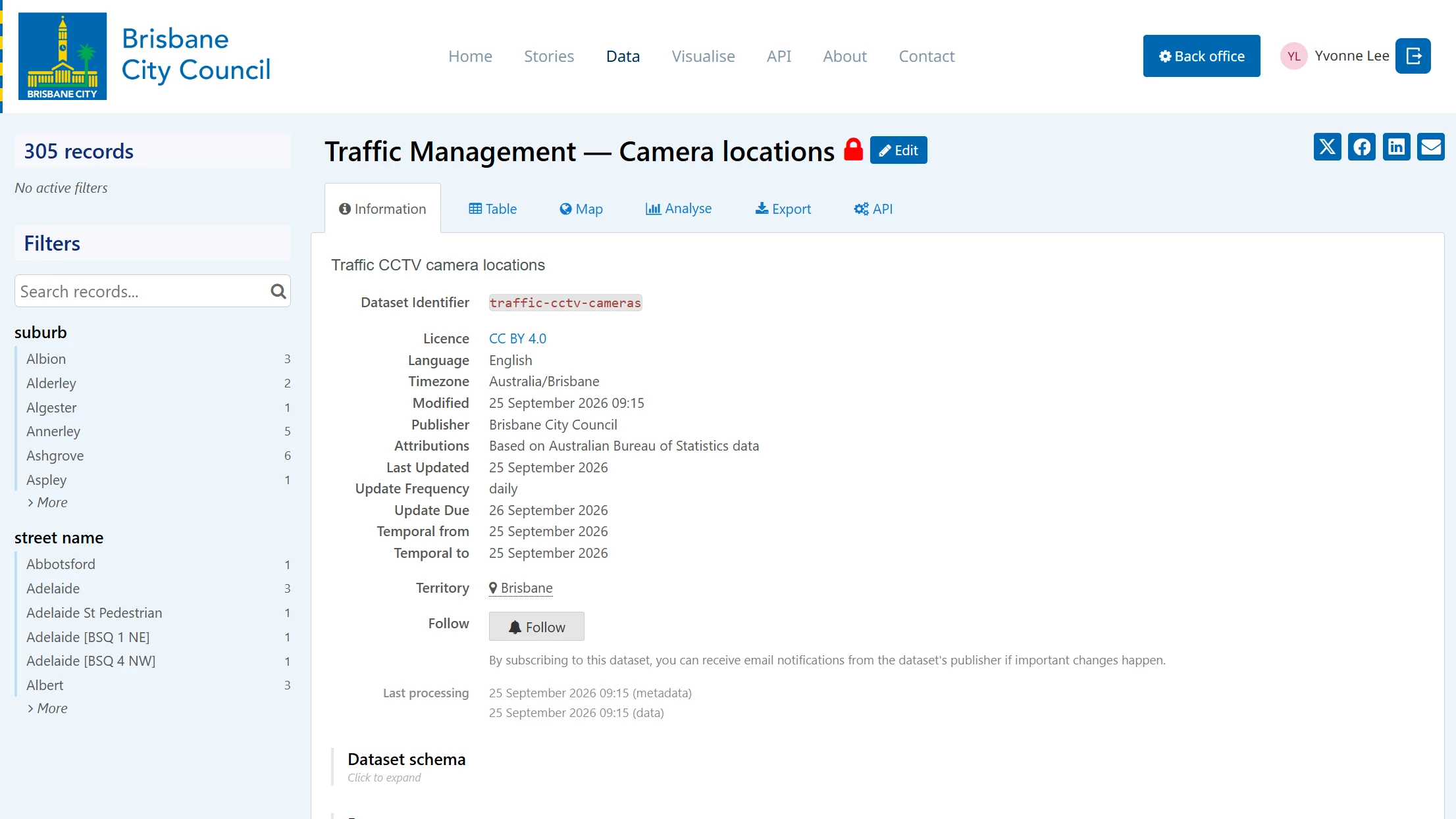
on the Dataset page we have also worked out how to do this and used a red icon to mark it same as we did for the catalog card


.ods-app-explore-dataset[ctx-dataset-schema*='\"visibility\": \"restricted\"'] .ods-dataset-visualization__dataset-title-text::after {

    content: ' \f023'; /* Single space followed by Font Awesome lock icon Unicode */

    font-family: 'FontAwesome'; /* Ensure Font Awesome is used */

    color: red; 

    margin-left: 2px; 

    font-size: 28px;

    display: inline-block;

    vertical-align: top; 

}


Forum|alt.badge.img+3
  • Author
  • Guardian
  • September 22, 2026

We've successfully used custom CSS in the legacy experience to visually identify restricted datasets by displaying a lock icon on both catalogue cards and dataset pages.

During testing of the New Experience, we've found that asset visibility information still appears to be available in the API response (for example visibility = restricted and visibility = domain), however it no longer appears to be exposed in a way that can be targeted through CSS customisations. 

For administrators managing a large number of assets, the ability to immediately distinguish between public and restricted datasets is extremely useful.

Would it be possible to:

  • Add Visibility (Public / Restricted) as an optional catalogue card indicator in the New Experience.
  • Add an optional visibility indicator on the Asset Overview page.
  • Alternatively, expose asset visibility as an HTML/data attribute so organisations can implement their own visual indicators through CSS, as was possible in the legacy experience.

Examples of possible indicators:

  • 🔒 Restricted
  • Restricted badge/chip
  • Lock icon beside the dataset title
  • Optional coloured border or status indicator

This would help administrators quickly identify content that is not publicly accessible and would restore functionality that many organisations may have previously implemented through custom CSS.


Nicolas Terpolilli
Community Manager
Forum|alt.badge.img+3

Hi Yvonne, thanks a lot for the detailed thread.

Could you expand on "the ability to immediately distinguish between public and restricted datasets is extremely useful" please?

More specifically I'd like to figure out

  • do you need a better view of datasets' visibility in general because a lot of your datasets only target named users?
  • or because there are steps (moderation/validation) before making a dataset fully public and it's more about the workflow?
  • why are the filters in the backoffice catalog not effective for checking what is restricted/public?
  • if you don't use the filters: what would be the experience in the backoffice that would give you the right confidence in data visibility? "see catalog as an anonymous user" page for example?

I understand that this is a data governance issue. We know that for now our backoffice experience is quite poor at managing hundreds of assets and makes it hard to implement complex governance. We are working hard on improving both the assets management and governance in the coming months though.

--

Additionally, the new experience introduces a new step in-between public and restricted with the access requests. I don't know how familiar you are with it, but it allows administrators to decide to make all the data assets visible and searchable in the catalog and expose their metadata, while keeping some of them restricted.

Access requests can be a way for you to encourage users to sign up, to expose a broader catalog of data while keeping the content - the data - restricted, and to measure interest to better serve one's audience.


Forum|alt.badge.img+3
  • Author
  • Guardian
  • September 24, 2026

Hi Nicolas
Thank you for your response!  

Here’s a couple of screenshots which may better convey what happens now (legacy experience)

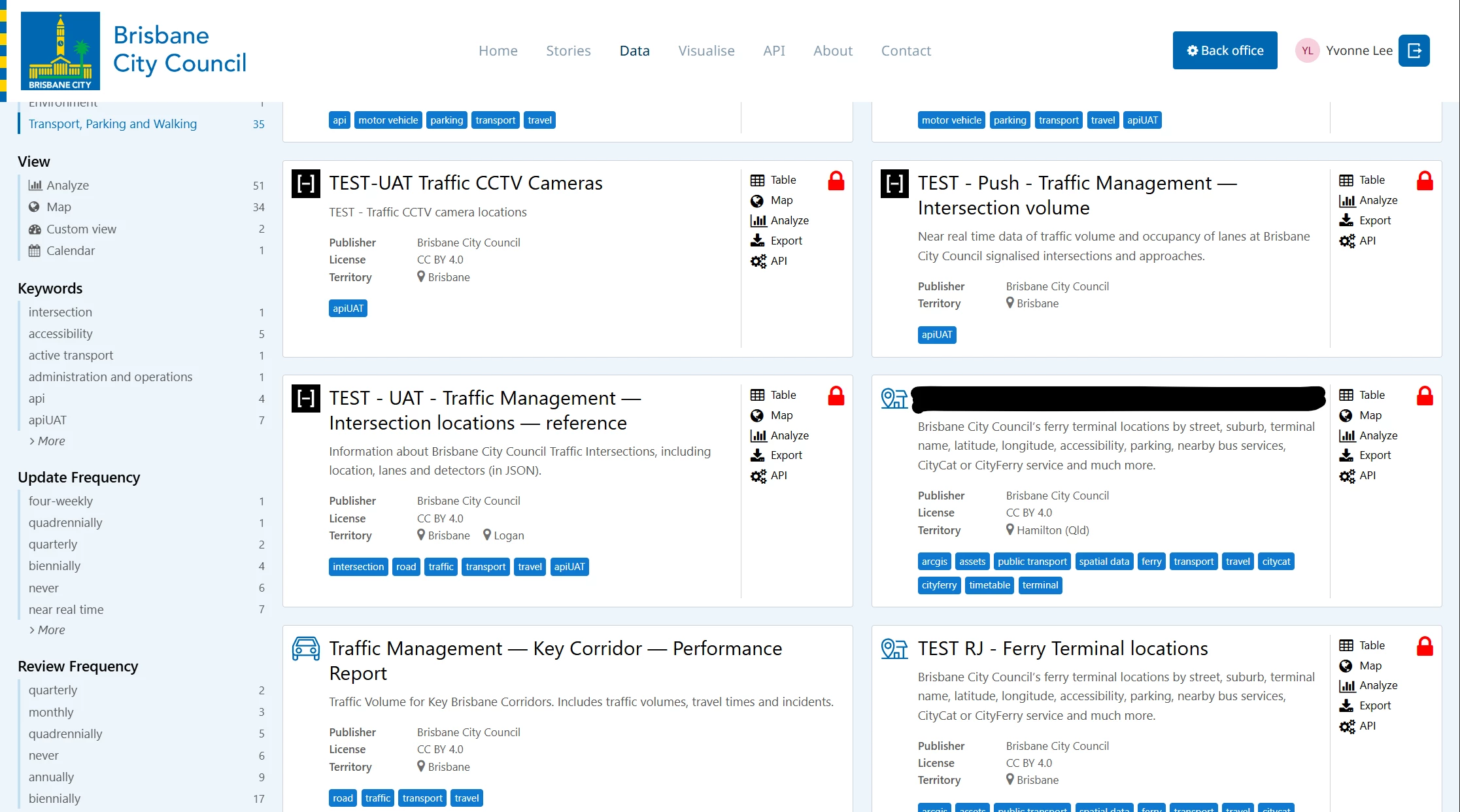
For a dataset that is pre production (before we push it to be published for everyone to see) we can easily see that it’s not public by the red lock symbol:


Restricted datasets can be identified immediately while browsing the catalogue


The primary use is easily identifying when navigating the catalogue which are public, restricted, development and test assets.

We currently use restricted datasets for:

  • Development and testing activities.
  • Collaboration with internal business areas before publication.
  • Administrative or reporting datasets

The back-office filters are useful when performing a deliberate governance task, but they don't help when browsing search results, reviewing related datasets, checking links, discussing assets with colleagues, or moving between catalogue pages.

The visibility indicator provided confidence at a glance without requiring users to stop and apply filters or open the asset configuration.  Our plans are to be able to use the platform for internal data catalogue purposes so it would be good to be able to easily tell what is publicly accessible and what is not.